QuickBooks Sandbox: Setup, Testing, Limits and Going Live
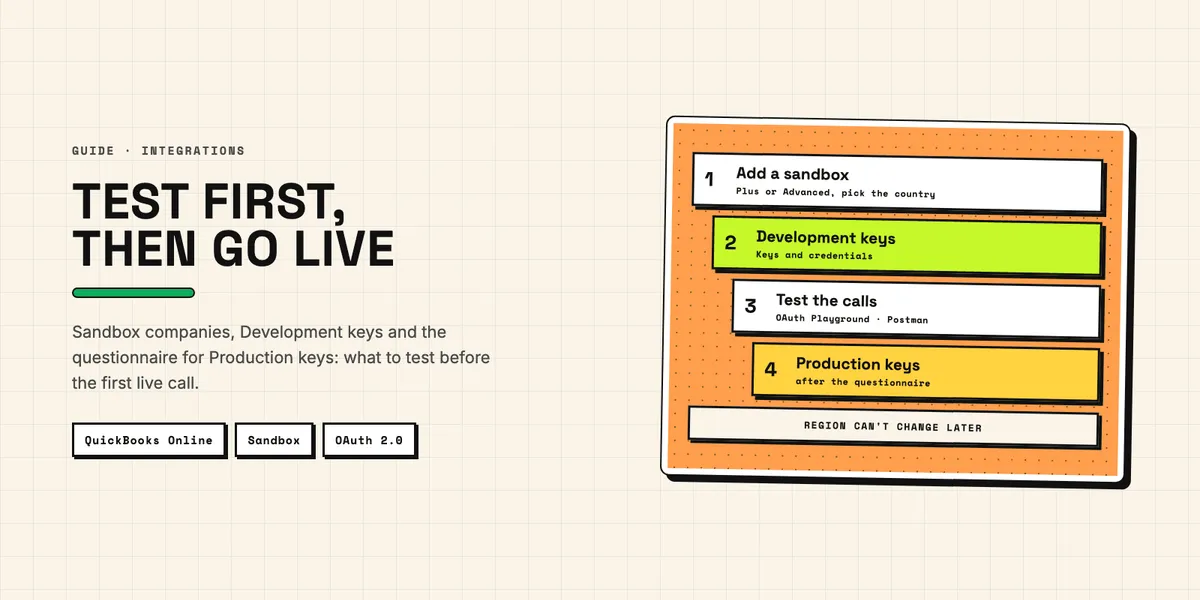
A QuickBooks sandbox is a test company inside your Intuit developer account. You use it to build and test an integration against the QuickBooks Online API without touching real books. Three topics deserve attention before you write much code: which set of credentials you use, which region your sandbox is created in, and how you get from sandbox to production. This guide covers all three, shows how to test API calls before you write production code, and explains the limits that matter once your test traffic grows.
The guide is written for developers and technical operators who connect QuickBooks Online to a CRM, for example to push won deals from Pipedrive into QuickBooks as invoices. If you are still deciding how to approach the connection at all, start with our overview of ways to connect Pipedrive and QuickBooks. For what happens after the test phase, see our QuickBooks API guide on tokens, limits and costs. This article covers the step before that: the test environment.
What is a QuickBooks sandbox, and what is it for?
A sandbox company is a QuickBooks Online company that exists only for app development. According to the Intuit guide to managing sandboxes, Intuit provides the environment, content and sample data for non-commercial use and testing. That means you get a company that already contains sample data, so your code has something realistic to read and write from the first API call.
You do not have to create the first one yourself. The Intuit sandbox FAQ states that you automatically start with a US-based sandbox when you create your developer account. That default is convenient if you build for the US market, but it becomes a pitfall when your users are in the UK, Canada or Australia, because a sandbox is tied to the region you chose when you created it. More on that below.
Two restrictions shape how you test. First, you cannot import or export data to or from sandbox companies, so you cannot copy a real customer file into the sandbox to reproduce a bug. Second, a sandbox is not a cheaper copy of production: it is meant for building, and its terms rule out commercial use.
How do you create a QuickBooks sandbox company?
Creating an additional sandbox takes a few clicks in the developer portal. The sandbox management page linked above describes the current path:
- Sign in to your developer account and select My Hub > Sandboxes from the upper-right corner of the toolbar.
- Select Add.
- Choose the product tier: QuickBooks Online Plus or QuickBooks Online Advanced.
- For Plus, pick the country from the dropdown.
- Select Create.
The new company then appears in your sandbox list, and you can open it in the browser like a normal QuickBooks Online company or address it through the API.
There is a ceiling on how many you can keep. The sandbox FAQ states that you can have a maximum of 10 sandbox companies, and that sandbox companies are valid for two years. Ten is enough for one sandbox per supported country plus a few spares for experiments, but not for a habit of creating a new company for every test run. And because no sandbox lives forever, plan your test setup so that replacing one is routine rather than an emergency.
Which region and product tier should you choose?
Choose the region and tier that match your real customers, because you cannot change either one later. The sandbox FAQ is explicit: once you create a sandbox, you cannot change the region or SKU, and you need to create a new one instead.
The available combinations are limited. QuickBooks Online Plus sandboxes exist for six countries; Advanced sandboxes are only available in the US.
| Product tier | Available sandbox regions |
|---|---|
| QuickBooks Online Plus | Australia, Canada, France, India, United Kingdom, United States |
| QuickBooks Online Advanced | United States only |
A practical rule: create one sandbox for each combination of country and tier your customers use. In practice, that means one Plus sandbox per country you support, plus an Advanced sandbox if you serve US customers on QuickBooks Online Advanced. An invoice sync tested only against a US company has not been tested against the company setup your UK or Canadian customers actually use. The automatic US sandbox from your account setup is fine for first experiments, but it should not be your only test company if your users are elsewhere.
What should you check if your app can't find a sandbox company?
Check the credentials first. Every app in the Intuit developer portal has two sets of keys. The Intuit guide to client ID and client secret puts it this way: each app has two sets of credentials, one for live production code and another for sandbox and testing environments.
The sandbox FAQ states the rule that applies here: always use the credentials in the Development section of your developer account for sandbox companies. Production credentials only work with live apps and real QuickBooks Online companies. So if a sandbox company does not show up, first confirm that your app runs with the Development client ID and secret, not the Production pair.
Then check the endpoint. API calls against a sandbox company go to the sandbox base URL, which Intuit documents as https://sandbox-quickbooks.api.intuit.com/v3. Make sure your Development keys and this base URL are used together. Keeping keys and base URL in one environment configuration means they can only change as a pair, which rules out one source of confusion.
How do you test API calls against the sandbox?
Before you write integration code, it pays to see real requests and responses. Intuit documents two tools for that: its own OAuth 2.0 Playground for the authorization flow, and Postman for individual API calls.
Walk through authorization in the OAuth 2.0 Playground
The Intuit OAuth 2.0 Playground shows sample requests and responses for each step of the authorization flow, and Intuit recommends testing it with a sandbox. Two details from that page matter for any CRM integration:
- Scopes: scopes decide which data your app may access. Intuit advises selecting only the scopes you plan to use for your production app, so the permissions you test with are the ones your users will later approve.
- Token lifetime: access tokens are valid for 60 minutes. After that, your code has to request a new one with the refresh token. Refresh tokens follow their own expiry rules, which our QuickBooks API guide covers.
Our advice on top of that: a sync that runs longer than an hour, or a scheduled job that starts with an old token, will fail unless the refresh is built in. The sandbox is the right place to trigger that case on purpose.
Send individual requests with Postman
For single API calls, Intuit publishes a guide to testing the QuickBooks Online API with Postman. Follow that guide for the complete setup, including the Intuit collection and the remaining fields of the token request. The values that are specific to the sandbox are these:
- Redirect URI: in your app settings, go to Settings > Redirect URIs > Development and enter
https://www.getpostman.com/oauth2/callback. Use the Development credentials, as with every sandbox call. - OAuth endpoints: the authorization URL is
https://appcenter.intuit.com/connect/oauth2, the access token URL ishttps://oauth.platform.intuit.com/oauth2/v1/tokens/bearer. - Scope: for accounting data, the scope is
com.intuit.quickbooks.accounting. - Environment: set
baseurltosandbox-quickbooks.api.intuit.comfor the Accounting API (orsandbox.api.intuit.comfor the Payments API), and setcompanyidto the company ID of your sandbox.
Intuit draws a clear line here: use Postman only for testing and prototyping API requests, and use a QuickBooks Online Accounting API SDK for production code. In practice, Postman is where you check what a customer or invoice object looks like before you map CRM fields onto it. Once the mapping is clear, the logic belongs in your application.
Which limits apply in the sandbox?
The sandbox FAQ lists the limits that apply to sandbox companies:
- API throttling: apps can make 500 requests per minute against a sandbox company. That is a little over eight requests per second, which an initial bulk sync of CRM contacts can exceed quickly.
- Email: you can send a total of 40 emails per day from a sandbox company for test purposes. Test invoice emails in small batches.
- Payroll and banking: payroll is not supported in sandbox companies, and you cannot connect real bank accounts.
- Data transfer: no import or export of data into or out of a sandbox.
For the limits that apply to live companies, see our QuickBooks API guide linked in the introduction.
For a CRM integration, the throttling limit deserves particular attention. A first sync that loops over every organization and deal in the CRM and fires one request per record can hit the ceiling. Build batching and back-off into your client from the start, then test it in the sandbox on purpose by running a larger sync. If you also pull data from the CRM side, the same discipline applies there; our guide to what you can build with the Pipedrive API covers how that side handles requests.
How do you reset or replace a sandbox?
You have two options when a sandbox is full of broken test data: clear it, or delete it. According to the sandbox management page, "Clear data and reset" removes all data while keeping the company itself, while deleting removes the whole sandbox. The sandbox FAQ adds that the original sample data cannot be brought back after clearing, so if your tests rely on the sample data, create a fresh sandbox instead of resetting the old one.
After clearing data, you may in rare cases see a "duplicate objects" message when adding new records. According to the sandbox FAQ, this is likely caused by caching, and signing out and signing back in should clear the cache.
Sandboxes also expire, since they are valid for two years. If your sandbox has expired, QuickBooks may ask you to enter payment information. The FAQ is clear: do not enter anything. Expired sandboxes cannot be extended; create a new one instead. This applies to a sandbox that has actually expired; if a notice appears before the two years are up, check the sandbox FAQ for the steps that apply before you create a replacement. Because a new sandbox means a new company ID, store the company ID (the realm ID) in configuration rather than hard-coding it, so that swapping the test company is a one-line change.
One more practical point: you cannot open several sandboxes or QuickBooks Online companies in the same browser at the same time. Use separate browsers, a private window, or Gear > Switch company when you compare data across test companies.
How do you move from the sandbox to production?
Going live means swapping three things: credentials, base URL and company. The production keys are not available by default. The client ID and client secret guide states that the production client ID and client secret become accessible only after you complete the Production Key questionnaire and it is approved. Once that is done, you find them under Keys and credentials > Production.
Plan for that approval step in your timeline. Fill in the questionnaire while you are still testing, not on the day you want to launch. Then switch your configuration in one move:
- Replace the Development client ID and secret with the Production pair.
- Replace the sandbox base URL with the production base URL from the Intuit API documentation.
- Run the OAuth flow again against a real QuickBooks Online company, which gives you a new realm ID and new tokens.
Treat the production connection as a fresh setup rather than a copy of your test connection. If you followed the scope advice from the Playground, the permissions your users approve will match what you tested. Before launch, also check what production usage will cost you and which limits apply to live companies; our QuickBooks API guide explains the App Partner Program tiers, how reads are counted and the live rate limits. Keep the sandbox configuration as a separate environment rather than overwriting it: you will need it again for every change you ship later.
What does this mean for a CRM-to-QuickBooks integration?
Whether you write your own code or build the flow in n8n with your own Intuit app and its Development credentials, the sandbox is where you prove the mapping between CRM records and accounting records before real invoices exist. Test the cases that hurt in production: a deal with a customer that does not yet exist in QuickBooks, a customer with a duplicate name, a currency or tax setting that differs from the default, a large first sync that pushes against the rate limit, and a long-running job that outlives its 60-minute access token.
Keep two environments side by side throughout the project: Development keys, sandbox base URL and sandbox realm ID on one side; Production keys, production base URL and the real company on the other. When a sandbox company does not show up, a value from the wrong side is the first thing to rule out. If you keep them strictly paired, the QuickBooks sandbox does what it is meant to do: it lets you break things safely, reset, and go live with an integration that has already handled the awkward cases.